User Guide
User Guide
This guide will provide description for the views that comes with this application and steps on how to create additional correlation searches.
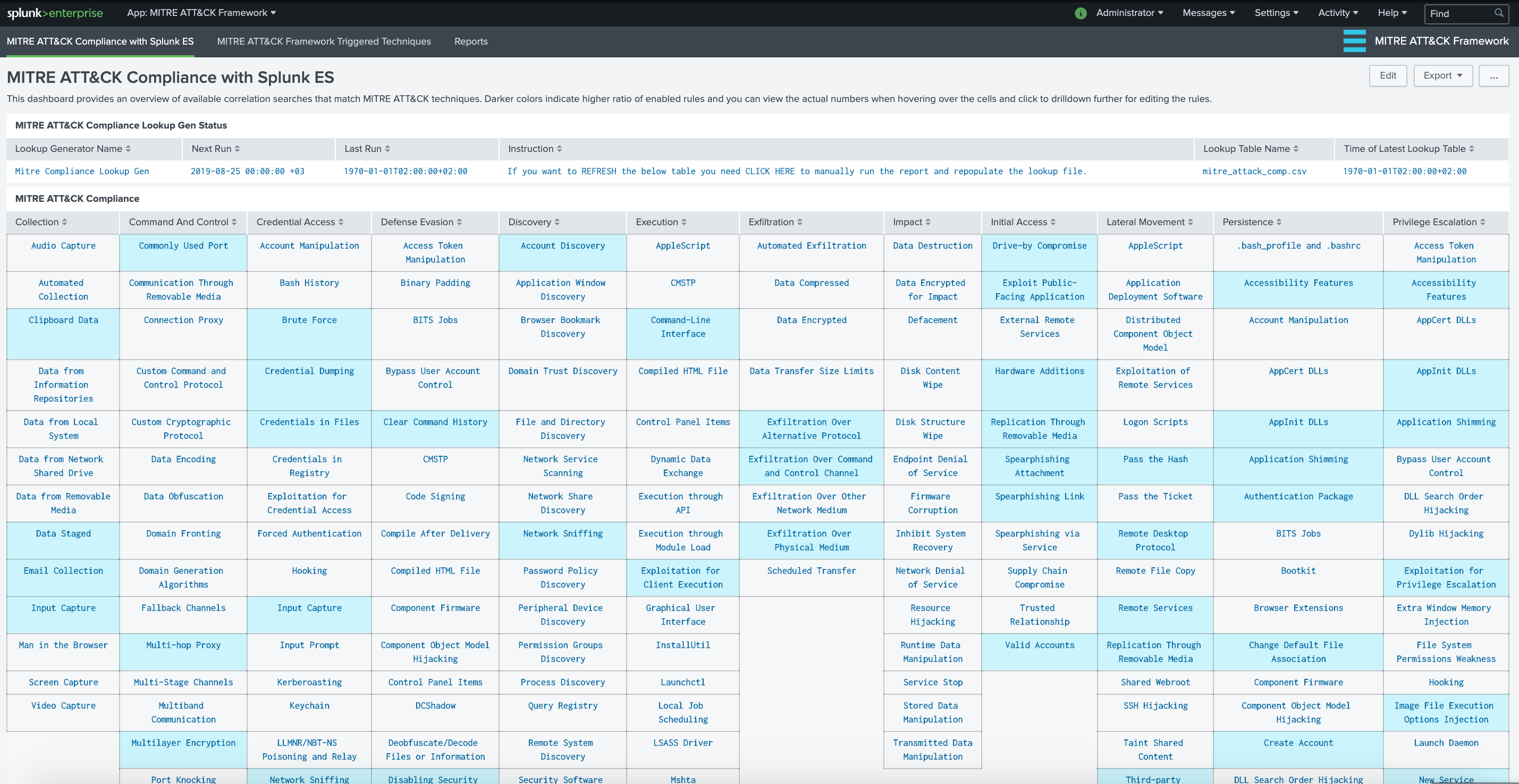
MITRE ATT&CK Compliance with Splunk ES View
Each cell containing a technique is colored based on the percentage of enabled correlation searches.
If there isn't any related correlation searches, the cell is left uncolored.
If there are available correlation searches within Enterprise Security (and ESCU), then cells are colored based on percentage of enabled/active ones.
Currently the ranges are set as follows:
- low: 0-30% enabled
- medium: 30-50% enabled
- high: 70%+ enabled
You can mouse over to the cells that contain techniques in order to view the number of available and enabled correlation rules that are specific to that technique.
MITRE ATT&CK Triggered Techniques
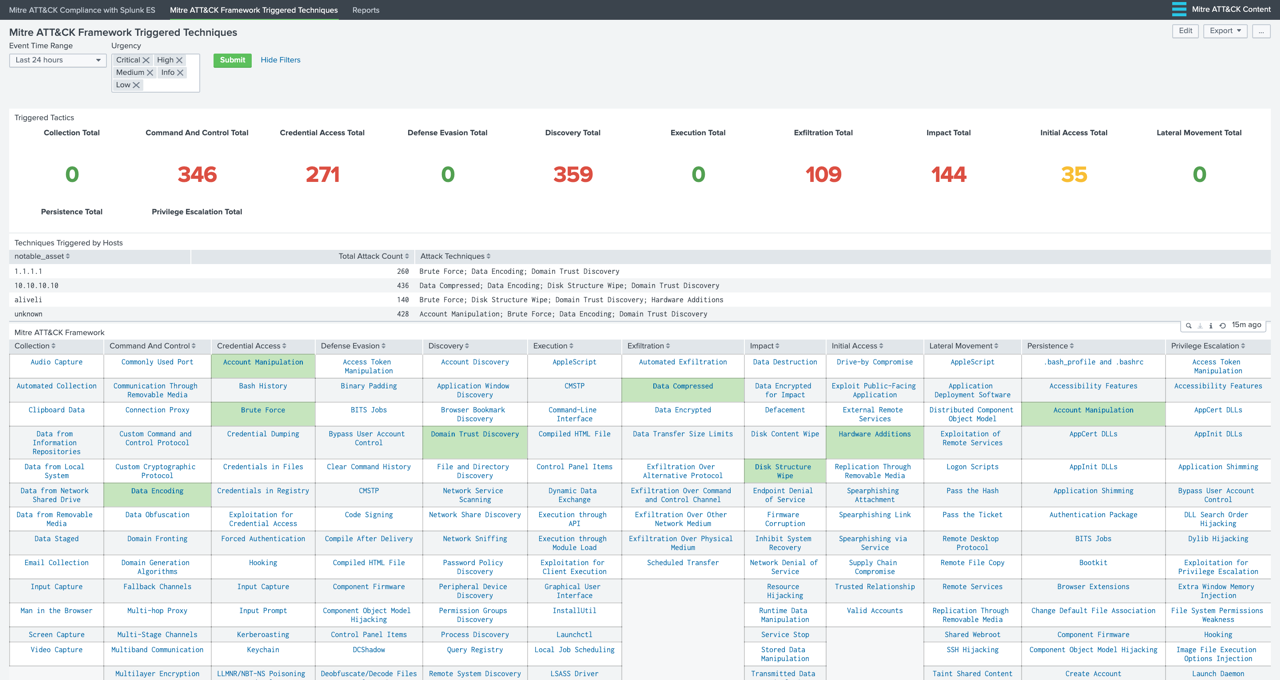
This dashboard/form has filtering options based on "Event Time Range" and "Urgency" level of Notable Events. Currently following panels are available:
-
Triggered Tactics: Shows an overview of number of triggered Notable Events according to MITRE ATT&CK tactics.
-
Techniques Triggered by Notable Assets: Shows the number of triggered Notable Events according to MITRE ATT&CK techniques grouped by Notable Assets.
notable_assetis populated bysrc,destoruserfrom related Data Models. -
MITRE ATT&CK Framework: Provides a detailed match of triggered correlation searches with techniques and colored based on urgency level.
How To Match a Correlation Search with Framework
The view in the application utilized Analytic Stories that are tagged with the Correlation Searches. Hence, in order to associate a Correlation Search with MITRE ATT&CK Techniques, you will need to create a new Analytic Story and add your Correlation Search with the appropriate tags.
Note: Please go to Splunk Documentation on how to create a Correlation Search.
For example, if we want the Correlation Search "Brute Force Access Behavior Detected" to be associated with "Brute Force" Technique under "Credential Access" tactic, we need to perform the following steps:
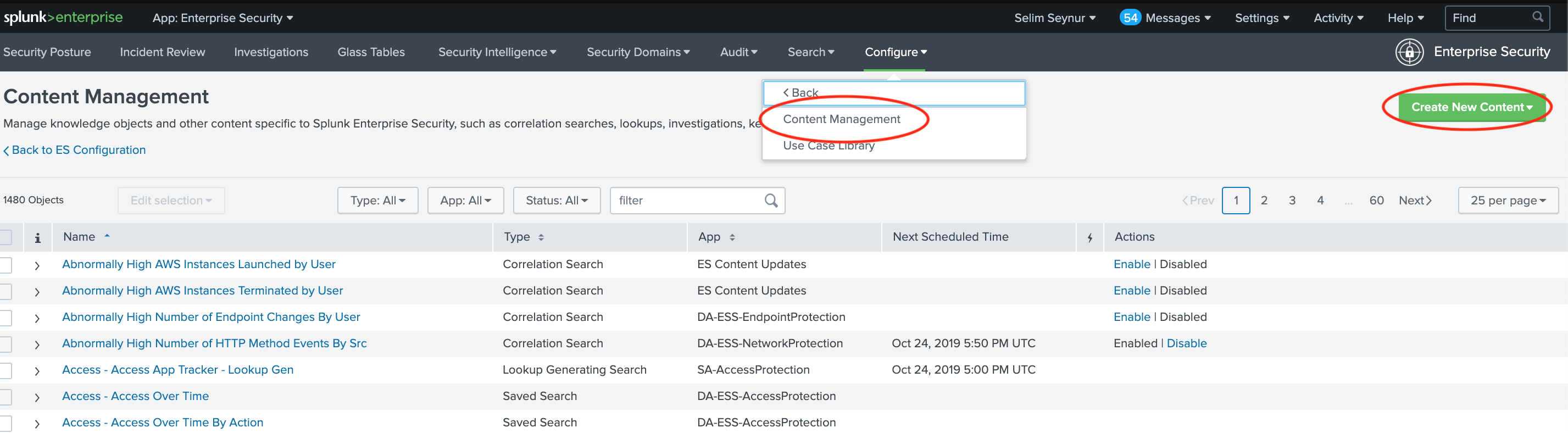
- Go to "Configure --> Content --> Content Management" from Enterprise Security Application menu. Click on "Create New Content" and select "Analytic Story"
 2. Enter a Name and fill other details as necessary for this analytic story. Click on "Add Search" and select "Brute Force Access Behavior Detected"
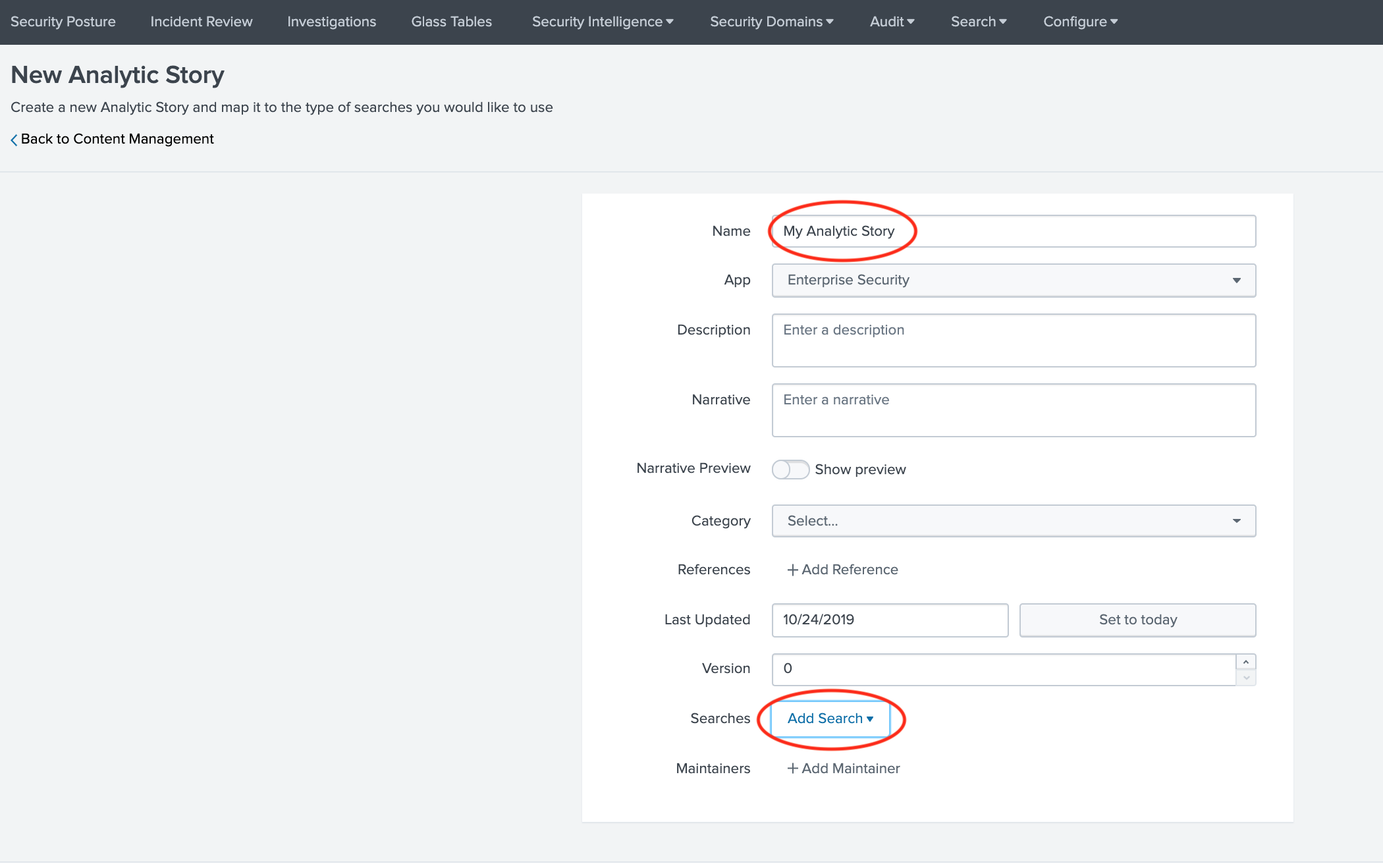
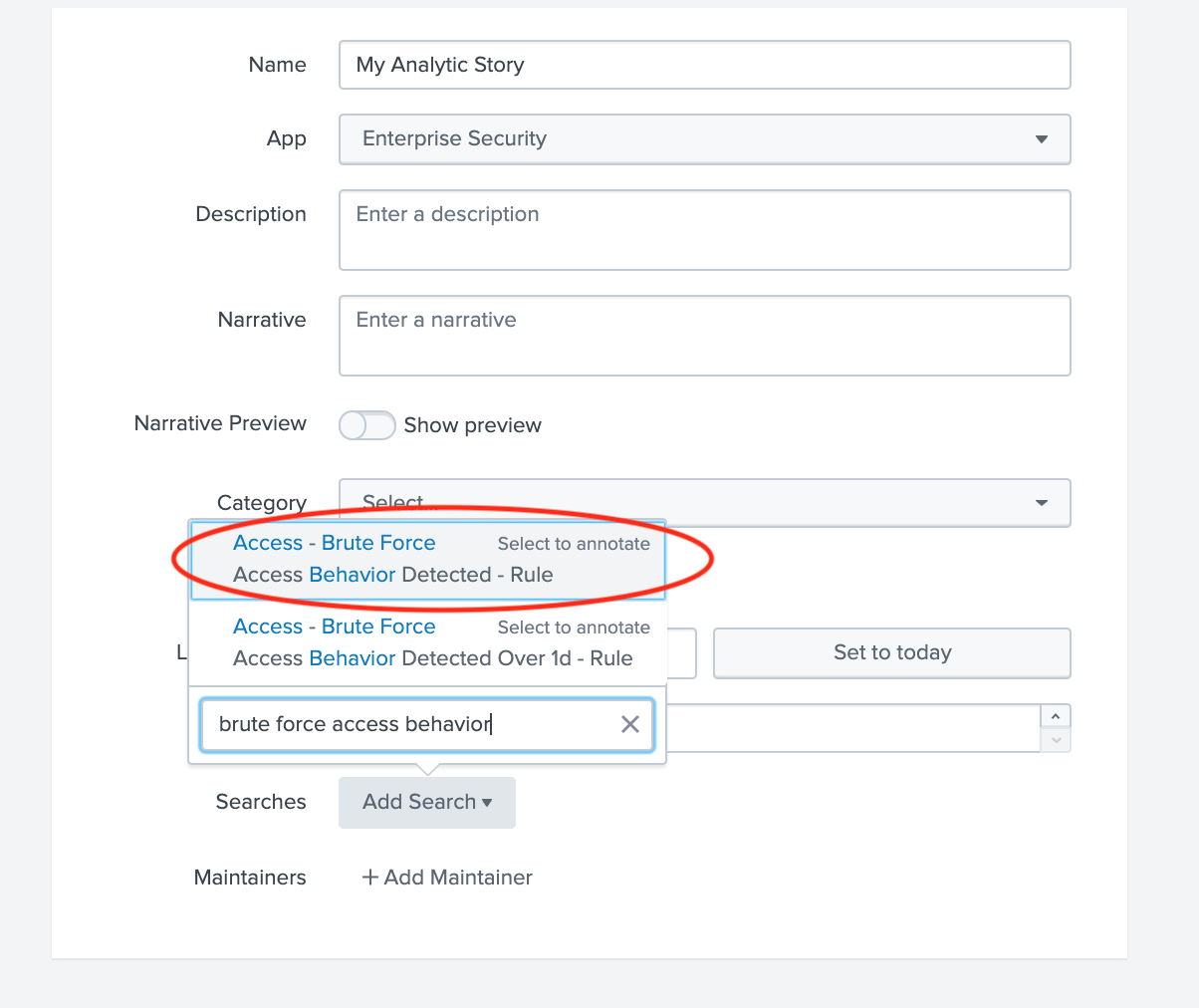 3. Enter
 detection for Type field and under Annotations enter mitre_attack for Name and Brute Force for Mappings (this should match the technique)
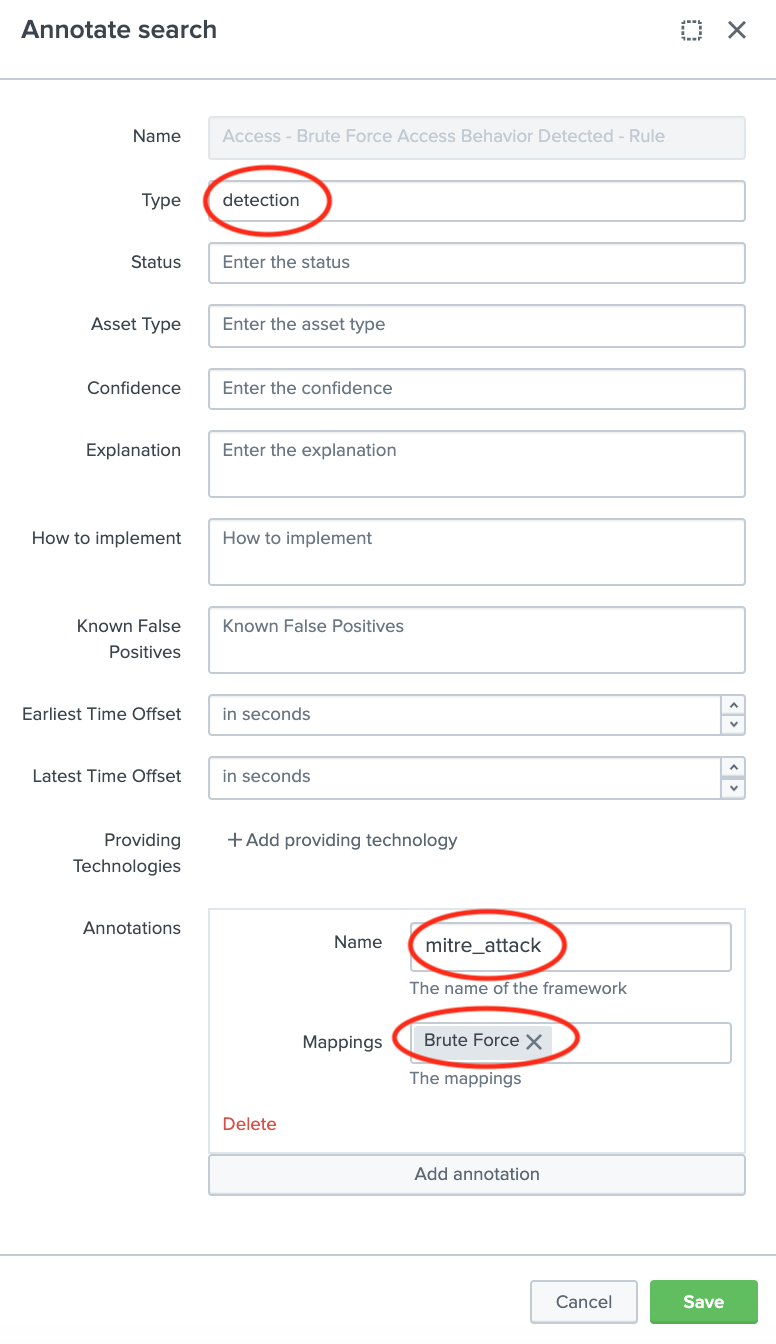 4. Click Save to save the Analytic Story with annotation and mapping with the defined correlation search. You can add many correlation searches under one analytic story with defined mappings.
Once saved, the correlation search will populate both the Compliance and Triggered Techniques dashboards.